Friday, 11 August 2017

Digital Intensive Week 3: Create: Making Meaning of Content (Google Quicktime Handout)

Today in our Manaiakalani Digital Intensive learning I learnt how to:

Create: Making meaning of content
  • Create a video recording of a Google Hangout between groups of three.
  • Use Quicktime screen recorder - each group will need a Mac user to create the recording. Trim ends on QT to remove ‘fluffing around’ at beginning and end of recording. Send it to a Google Drive folder (make visible) at the end so you can embed in blogs.
  • In groups of three, host and record a hangout.
We choose a child from the posts here,  read what they have posted and base your discussion on this one post -*Tip* make it easy - scan through and pick one that has a creative looking post to discuss!!

Questions to guide our conversation on slide 20
  1. What learner empowerment is demonstrated?  Do you detect signs of learner agency in this post? Did they have any room to make choices?
  2. What supports / scaffolds might the teacher have set up to get this creative activity to occur? Eg scaffolds, rubrics, templates etc etc.
  3. Explain/reflect/demonstrate learning, through creation - How has creation given more opportunities for deep learning and cognitive engagement?

For the above we 3 sat separately wearing our ear pieces and got engaged in our conversation. There was bit of noise as we were sharing the room with colleagues.

Below is a Quicktime Recording done with Jay and Sandhya.


Digital Intensive Week 3: Gmail

https://upload.wikimedia.org/wikipedia/commons/4/4e/Gmail_Icon.png
This morning we learnt about Gmail and some of the important steps we can take to fix the Gmail account. We focused on:
1. Settings
Display Density - How compact your emails sit in your inbox
Inbox Type - See unread or important emails first etc
Theme - Custom themes and colours.


2. Organise - Organise your Gmail
Settings
Archive - Hide/ Mute emails from your inbox
Labels - Use to organise your mail (works like a folder)
Filter - Automate your emails to save time
Starring - Star emails as important to come back to later


3. Attach - Attach images, and Google Drive
Attach
File - .pdf etc
Drive - any file in your google drive
Image - Google photos, upload, or web address
Hyperlink - hyperlink text with a URL
Emoji - Insert an emoticon

4. Translate - Google Translate inside Gmail
Sending
Google Translate - Copy and paste into Google Translate into any language

Receiving
More - Translate this message

5. Labs - Experimental Gadgets and addons
Settings - Labs
Mark as Read - Mark email as read button
Unread message icon - Number of unread emails in tab
Google Calendar - Gadget to have a mini calendar inside Google+more

6. App - Gmail App
App
Different Layout - the Gmail app layout is slightly different
Notifications - Receive emails on the go, reply, star or archive
Canned responses - Tailored to the content of the email
*Tip
On personal device use native app for personal emails, and gmail app for work.

7. Useful tools -  in settings
Pop/ Forwarding
Forwarding - receive emails sent to another account
Pop - Set up email client i.e. outlook, apple mail etc

Undo Send
Undo send - 10, 20, 30 seconds can press undo

Search Mail
Search - Use the power of Google Search to find your emails.

Digital Intensive Week 3: Calendar Hangouts

Keeping professional life more organised these days is a huge challenge.
Google Calendar is one of the ways to keep things on track.

The steps are as follows:

Hangout steps:

  1. Calendars > Create a calendar Event on a specific day/time. Name it.
    1. Note it immediately creates a Hangout link > Green Camera, “Join Meeting”
    2. Edit the event > invite Guests (type in their email) > Save > Agree to Send
  2. Hangout > Click Join Meeting link in calendar event > browser will open Hangout
    1. check your face and surroundings (back lighting etc)!!
    2. MUTE microphone > Click green JOIN button
  3. Toggle between Mute and unmute when you want to speak.
    1. Chat > select blue button on LEFT side of screen

Digital Intensive Week 3: Gmail Calendar Hangout

Gmail Calendar Hangout
https://upload.wikimedia.org/wikipedia/commons/e/e9/Google_Calendar.png
Gmail calendar shows an awesome way we can manage our Gmail calendar.

1. View - Change how your Calendar looks

Settings
Display Density - How compact your appoints look
Default View - Set default view from Day, Week, Month, Custom, Agenda
Custom View - Set up a custom view i.e. how many days you want to see
Date Format - Choose your date format
Time Format - Choose your time format
Hide Hours - Hide morning and night (Lab) Hide unnecessary hours


2. Multiple Calendars - Managing your life

Create a calendar
My Calendars - Create multiple calendars for different life areas (Work/ Social)
Other Calendars - Request access to colleagues calendars
Colour Code- Choose colours for each calendar
Share - Sharing your calendar with individual people, organization wide or set to public.


3. Events - Creating and Scheduling Events

New Events
Create - Add new event to the calendar using the create button
Particulars - Add title, times, location, description
Invite - Invite guests via their email address
Attach - Attach files via Drive or Upload
Repeat - Define any recurrences

Tip
Send to Calendar extension

4. App - Google Calendar App

App
View - Choosing and switching between views
Alerts & Notifications - Set permissions via phone settings
Accessing other’s calendars  - Hide or view other calendars
Import - Import your google calendars into other calendar apps via phone settings


https://upload.wikimedia.org/wikipedia/commons/f/fe/Hangouts_Icon.png
5. Functions - What can Google hangouts do

Functions
Remote meetings - Can from anywhere with an internet connection
Video Calling - Up to 15* people at one
Screen Sharing - Option to show what you are doing on your screen as well as your face


Image result for Google hangouts screen share

6. Etiquette - What to do?

Etiquette
Group calling
- When group calling the screen will change to whoever is speaking (or making noise) therefore be careful not to click your pen?
Headphones
- Not necessary however can reduce the amount of feedback and therefore improve sound quality
Same room
- Due to the nature of google hangout, you wouldn’t normally encourage people to be in the same room as each other when on a hangout. However, if you are make sure you are pressing the “Mute” button when you aren’t talking to reduce the amount of feedback interference.

7. Access - How to get into Hangouts

Access
Google Hangouts - Create a hangout directly from Google hangouts
Gmail - Create a hangout from Gmail contacts
Calendar - Schedule a hangout from a Calendar event
Hyperlink - Link an event anywhere as you would any other hyperlink i.e this agenda.

Wednesday, 9 August 2017

Staff Meeting: Keeping Ourselves Safe

It's paramount for adults and kids to understand about safety in general. In particular how we can Keep Ourselves and Others Safe.  Below is some information about KOS.

Detail Keeping Ourselves Safe (KOS) lessons will be taught by the school constable in few weeks time.


Friday, 4 August 2017

Digital Intensive Week 2: Google Maps - Our Holiday Destinations


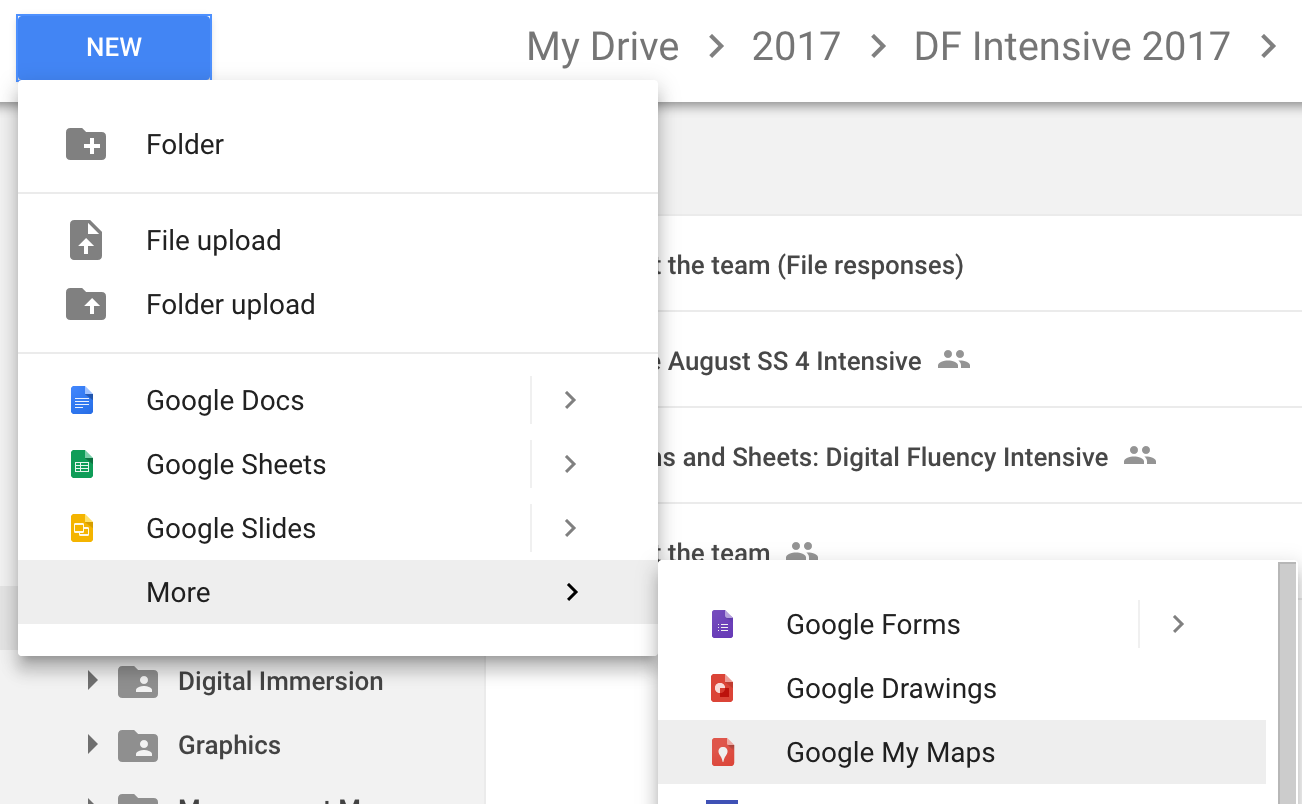
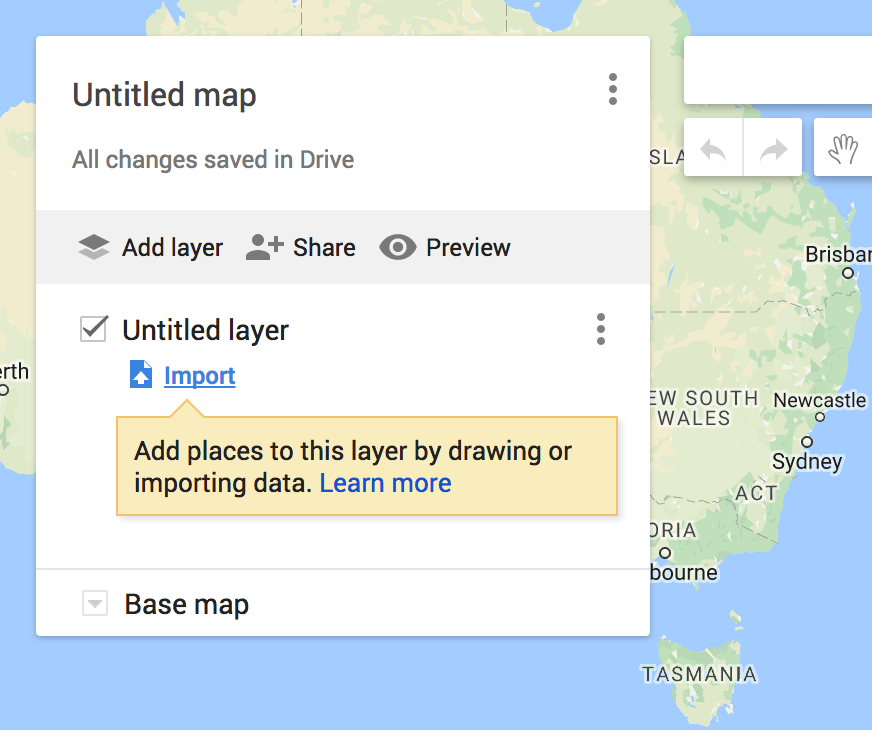
Create a map out of G Forms/ SS  mymaps.google.com


Create a map out of G Forms/ SS  mymaps.google.com


The task we were required to do was: 

Share your map on your blog

Create Map in MyMaps

  1. Open Blogger
  2. Create New Post > click HTML
  3. Go back to your map
  4. Click >  Share
  5. Change Private to Public
  6. Click Save > Done
  7. Click (3 dots) at top right side of the title
  8. Choose embed to website
  9. Copy code and paste into Blogger
  10. Click compose to view your map on your blog
  11. Preview / add text/ Post

Create your own adventure.
Want to take this create activity up to Level 2 or Trainer?


These instructions are from an international guru - Sylvia Duckworth - follow the instructions and you will do it easy as....


Description
Link
Form to play with
Instructions Doc
Choose your own adventure template
Maze style planning frame


Below is the map that I have created using Google Maps. I followed the instruction thoroughly and was able to locate the city and the country. So Changi, Singapore is my favourite holiday destination.


Scribo

  Today I attended a 30-minute professional development session about how I can use Scribo in my class. It looked very valuable for the lea...